Showing posts with label Apple. Show all posts

Friday, January 11, 2013

Huawei Ascend D Quad and D Quad XL Wi-Fi Hotspot Setting: Step by Step Tutorial.

By specs-phones | At 12:15 AM | Label : , , , , , , , , , , | 0 Comments
Huawei Ascend D quad XL support 2G Network GSM 850 / 900 / 1800 / 1900 and 3G Network HSDPA 850 / 900 / 1700 / 1900 / 2100 network. It has Android OS, v4.0 (Ice Cream Sandwich). It has WLAN Wi-Fi 802.11 b/g/n, Wi-Fi hotspot, DLNA. Now I will show you that how can you connect your Huawei Ascend D Quad and D Quad XL withWi-Fi network using WiFiFinder Application. Now see my step by step tutorial.

Wi-Fi Finder requires phone call permission on the phone version as an easy way to call the public Wi-Fi location when viewing the detail view of a Wi-Fi hotspot. The app will NEVER make calls unless you explicitly click on the phone icon and confirm that you would like to call the Wi-Fi location.


Never worry again about not finding a Wi-Fi internet connection. Wi-Fi Finder is simply the best app for finding free or paid public Wi-Fi hotspots online or offline—perfect for Skype users on the go!

Step 1: Scan Wi-Fi hotspots
Scan for Wi-Fi hotspots around you for connect your Huawei Ascend D Quad and D Quad XL with Wi-Fi Hotspot.

Step 2: Search Public Wi-Fi

You can search for public Wi-Fi anywhere in the world for this version of the Huaweimobile phone.


Step 3: Wi-Fi Hotspot Detail 
You can see Wi-Fi hotspot detail, call location of the user directions and you can also share the share the hotspot


Step 4: Filter Wi-Fi Hotspot Locations
You can filter your Wi-Fi Hotspot searching results by location such as café or hotel etc or provider type. You can filter the locations.


Step 5: Wi-Fi Works both Online and Offline
You can set your Huawei Ascend D Quad and D Quad XL working mode. It can work both online and offline mode.


In this way you can connect your Huawei Ascend D Quad and D Quad XL with Wi-Fi network using WiFi Finder Application.

How to Change Symbian S60V3 Default Menu Indicators Style: Read My Step By Step Tutorial.

By specs-phones | At 12:11 AM | Label : , , , , , , , , , , | 2 Comments
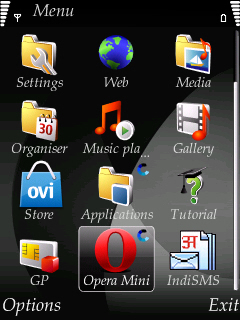
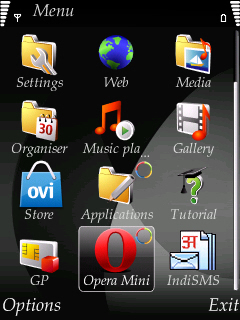
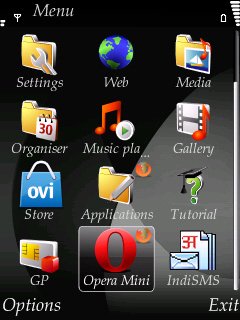
How are you? Today I will show you how to change the default menu of indicators ofSymbian S60V3. When you run an application in Symbian mobile and minimize the application during running process then which icon or sign of the application you see is called the menu indicator? For example in the application folder of my mobile I open one application and opera mini this two application. 


See the Application and the opera mini symbol is same. This is menu indicator. Now see when I change this indicator of my Symbian S60V3 Default Menu then how it looks like. For better understanding I provide the image below: Symbian S60V3 Default Menu Indicators Style 1.


Symbian S60V3 Default Menu Indicators Style 2:


Symbian S60V3 Default Menu Indicators Style 3:


When you change the menu indication then the icon of some application and folder also is changed. If you want to change the indicator of your Symbian S60V3 default menu then follow my steps.


Step 1: Create a folder named Patches in the memory card of the mobile. Open C drive with Xplore. Now copy Open4All RP+ from Patches folder and paste it in the Patches folder in the memory card.


Step 2: Now copy c2z Patch and paste it in the Patches folder of the memory card.


Step 3: Now open Rom Patcher and add the two patches just click Add to auto and then click apply.


Step 4: Now download the menu indication zip file from HERE and unzip it. You can see 26 zip files here. Now which menu indicators you like unzip it.


Step 5: After unzip we see a file named menu.mif. Now copy menu.mif with Xplore and paste it in C: -> resource -> apps.


Step 6: Now close Xplore and restart your mobile then you can see you’re default menu indicator will change.


Thanks for reading my blog. If you have any query please post your comment and share your experiences with us.

Apple iPhone 5 WiFi Hotspot Settings Problem Help: Step by Step Solution.

By specs-phones | At 12:04 AM | Label : | 0 Comments
Apple iPhone 5 support 2G Network GSM 850 / 900 / 1800 / 1900 and CDMA 800 / 1900 - for Verizon network for 2G and 4G NetworknLTE 700 MHz Class 17 / 2100 - for AT&T,LTE 700 MHz Class 13 - for Verizon for 4G network. Its operating system is iOS 6. It support Wi-Fi 802.11 a/b/g/n, Wi-Fi Plus Cellular network but sometimes Apple iPhone 5 facing problem for connecting the Wi-Fi. If you do not able to connect Wi-Fi properly then follow my steps for troubleshooting this problem.


Sometimes Apple iPhone 5 having trouble to finding the wireless access point(AP) to connect the WiFi Hotspot. This is not a big problem for Apple iPhone 5. If you tried placing the Apple iPhone 5 near the router still does not pick up the access point. The possible solution of this problem is:


Step 1: Change the Channel of your iPhone 5 WiFi
If you facing problem after setting the Wi-Fi then change the channel. I think if you change the channel of Apple iPhone 5 WiFi can help. Downloading wifi analyser from the google play store and it'll help you identify a less crowded channel to try.


Step 2: Remove all Cordless Devices of the Same Range like Apple iPhone 5 WiFi
If you have a cordless phone and other devices in your house that operates same range of frequency like Apple iPhone 5 WiFi. Then you faced problem when you want to connect your Apple iPhone 5 WiFi with WI-Fi. So remove the entire cordless phone and other devices that operate in the same WI-Fi frequency like Apple iPhone 5 WiFi.


Step 3: Change Apple iPhone 5 Channel Frequency to a Lower Number
If you have facing problem connection your Apple iPhone 5 with WiFi,I suggest you change your current channel frequency to a lower number. I think this will work.

Monday, January 7, 2013

Tips For Protect Your Google Alert,Facebook, Twitter, Gmail and Pay in Cash Privacy.

By specs-phones | At 8:40 PM | Label : , , , , , , , , , , | 0 Comments
Over the weekend, I wound up at Washington, D.C.’s Trapeze School with a group of friends. Before one of them headed up a ladder to attempt a somersault landing from the trapeze bar, she handed me her phone and asked me to take photos. “What’s the password?” I asked. “I don’t use one,” she replied. My jaw dropped as it often does when someone I know tells me they’re choosing not to take one of the very simplest steps for privacy protection, allowing anyone to snoop through their phone with the greatest of ease, to see whichever messages, photos, and sensitive apps they please.

So this post is for you, guy with no iPad password, and for you, girl who stays signed into Gmail on her boyfriend’s computer, and for you, person walking down the street having a loud conversation on your mobile phone about your recent doctor’s diagnosis of that rash thing you have. These are the really, really simple things you should be doing to keep casual intruders from invading your privacy.

1. Password protect your devices: your smartphone, your iPad, your computer, your tablet, etc. Some open bookers tell me it’s “annoying” to take two seconds to type in a password before they can use their phone. C’mon, folks. Choosing not to password protect these devices is the digital equivalent of leaving your home or car unlocked. If you’re lucky, no one will take advantage of the access. Or maybe the contents will be ravaged and your favorite speakers and/or secrets stolen. If you’re not paranoid enough, spend some time reading entries in Reddit Relationships, where many an Internet user goes to discuss issues of the heart. A good percentage of the entries start, “I know I shouldn’t have, but I peeked at my gf’s phone and read her text messages, and…”

2. Put a Google Alert on your name. This is an incredibly easy way to stay on top of what’s being said about you online. It takes less than a minute to do. Go here. Enter your name, and variations of your name, with quotation marks around it. Boom. You’re done.

3. Sign out of Facebook, Twitter, Gmail, etc. when you’re done with your emailing, social networking, tweeting, and other forms of time-wasting. Not only will this slightly reduce the amount of tracking of you as you surf the Web, this prevents someone who later sits down at your computer from loading one of these up and getting snoopy. If you’re using someone else’s or a public computer, this is especially important. Yes, people actually forget to do this, with terrible outcomes.

4. Don’t give out your email address, phone number, or zip code when asked.Obviously, if a sketchy dude in a bar asks for your phone number, you say no. But when the asker is a uniform-wearing employee at Best Buy, many a consumer hands over their digits when asked. Stores often use this info to help profile you and your purchase. You can say no. If you feel badly about it, just pretend the employee is the sketchy dude in the bar.

5. Encrypt your computer. The word “encrypt” may sound like a betrayal of the simplicity I promised in the headline, but this is actually quite easy to do, especially if you’re a MacHead. Encrypting your computer means that someone has to have your password (or encryption key) in order to peek at its contents should they get access to your hard drive. On a Mac, you just go to your settings, choose “Security and Privacy,” go to “FileVault,” choose the “Turn on FileVault” option. Boom goes the encryption dynamite. PC folk need to use Bitlocker.

6. Gmailers, turn on 2-step authentication in Gmail. The biggest takeaway from the epic hack of Wired’s Mat Honan was that it probably wouldn’t have happened if he’d turned on “2-step verification” in Gmail. This simple little step turns your phone into a security fob — in order for your Gmail account to be accessed from a new device, a person (hopefully you) needs a code that’s sent to your phone. This means that even if someone gets your password somehow, they won’t be able to use it to sign into your account from a strange computer. Google says that millions of people use this tool, and that “thousands more enroll each day.” Be one of those people. The downside: It’s annoying if your phone battery dies or if you’re traveling abroad. The upside: you can print a piece of paper to take with you, says James Fallows at the Atlantic. Alternately, you can turn it off when you’re going to be abroad or phone-less. Or you can leave it permanently turned off, and increase your risk of getting epically hacked. Decision’s yours.

7. Pay in cash for embarrassing items. Don’t want a purchase to be easily tracked back to you? You’ve seen the movies! Use cash. One data mining CEO says this is how he pays for hamburgers and junk food these days.

8. Change Your Facebook settings to “Friends Only.” You’d think with the many Facebook privacy stories over the years that everyone would have their accounts locked down and boarded up like Florida houses before a hurricane. Not so. There are still plenty of Facebookers that are as exposed on the platform as Katy Perry at a water park. Visit your Facebook privacy settings. Make sure this “default privacy” setting isn’t set to public, and if it’s set to “Custom,” make sure you know and are comfortable with any “Networks” you’re sharing with.

9. Clear your browser history and cookies on a regular basis. When’s the last time you did that? If you just shrugged, consider changing your browser settings so that this is automatically cleared every session. Go to the “privacy” setting in your Browser’s “Options.” Tell it to “never remember your history.” This will reduce the amount you’re tracked online. Consider a browser add-on like TACO to further reduce tracking of your online behavior.

10. Use an IP masker. When you visit a website, you leave a footprint behind in the form of IP information. If you want to visit someone’s blog without their necessarily knowing it’s you — say if you’re checking out a biz competitor, a love interest, or an ex — you should consider masking your computer’s fingerprint, which at the very least gives away your approximate location and service provider. A person looking at their analytics would notice me as a regular visitor from Washington, D.C. for example, and would probably even be able to tell that I was visiting from a Forbes network address. To hide this, you can download Tor or use an easy browser-based option.

These are some of the easiest things you can do to protect your privacy. Ignoring these is like sending your personal information out onto the trapeze without a safety net. It might do fine… or it could get ugly. These are simple tips for basic privacy; if you’re in a high-risk situation where you require privacy from malicious actors, check out EFF’s surveillance self-defense tips.

Sumber : http://tipsabc24.blogspot.com

Saturday, December 22, 2012

Secure Your Apple iPhone SMS: Know SMS Security Problem That Increased Text Spam

By specs-phones | At 11:37 PM | Label : | 6 Comments

iPhone SMS Security Hole:
Apple has responded to the reported iPhone SMS security hole by urging iPhone users to take advantage of its iMessage service.The security flaw was uncovered by an iOS hacker known as pod2g, who discovered that the flaw could allow malicious users to spoof text messages, making the recipient believe that the message was from a trusted source.  

iPhone Spoofing Attacks:
Engadget quoted a response from an Apple respresentative: "Apple takes security very seriously. When using iMessage instead of SMS, addresses are verified, which protects against these kinds of spoofing attacks. One of the limitations of SMS is that it allows messages to be sent with spoofed addresses to any phone, so we urge customers to be extremely careful if they're directed to an unknown website or address over SMS."


Track Your Sent Messages
Apple introduced iMessage as part of iOS 5 in June 2011. With iMessage, users can track sent messages with delivery receipts and take advantage of secure encryption for text messages. Users can send text messages, photos, videos and contacts via Wi-Fi or 3G. The iMessage service is available on iPad, iPhone or iPod Touch running iOS 5 or higher, or on a Mac running OS X Mountain Lion or above.

Phone SMS Security Problem Leads to Increased Text Spam
There is a problem with iPhone SMS security. In fact, according to Apple and others, there is a problem with SMS security in general because messages with spoofed addresses can be sent to any phone. Although no reasonable observer will say that SMS is secure or that other than Apple smartphones don’t have the same problem, you would think Cupertino would have learned how to respond to product image issues.


The last time Apple ducked for covered behind the competition, it didn’t turn out so well.
Back in June 2010, the iPhone 4 was new and all the rage. For some people, it was more about rage than fashion — holding it “wrong” meant the user would cause signal strength attenuation, which lead to dropped calls and poor performance. Apple responds to iPhone SMS security vulnerability.

How to Resize Linux Home and Root Partition Easily: Step by Step.

By specs-phones | At 9:02 PM | Label : | 0 Comments

It is a great problem for new linux user to resize the home and root partition. Now I will show you, how you can resize Linux home and root partition easily using Gparted partition manager. Sometimes we make a large home partition and needs to resize it. You can resize using the Gparted 126 mb iso to burn a DVD of the live boot through the home / root. You can do it also from live booting of Linux DVD or USB because linuz ios is given in the gparted. Now see my step by step tutorial on: How to Resize Linux Home and Root Partition Easily.

Step 1: First Live boot Linux using the linux DVD or USB. Suppose, we are now aadd 512 MB space in the root partition. However, since the swap is in middle so it can be done in four steps; otherwise we can finish it in two steps.

Step 2: Transfer 51 MB from home to the swap: The right click on the Home partition an go to the resize / move. Below I provide the image for you.


Step 3: Click on resize / move then you can see unallocated space 512 MB in the main menu which is in shrink condition. Now we add 512 MB shrink space in the swap partition. Before resize the swap partition right clicks on it and select swap off.

Step 4: Now again shrink the 512 MB space which you add in the swap. Now add the 512 MB unallocated space in root from swap. 


Step 5: Now click the resize button. But resize is not completed. Go Main menu > edit > Apply pending operations. Ignore the warning message.

Now your resize will start. It may takes sometime but do not stop it before finished. After complete these process you can see your partitions are resized.

Apple Vs Samsung Patent War: Good for Apple, Bad for Samsung.

By specs-phones | At 8:26 PM | Label : , | 0 Comments

The jury in the Apple-Samsung patent infringement case concluded Friday that Samsung should pay Apple $1 billion in damages for ripping off features of Apple's iPhone.This ruling is good for Apple (AAPL), bad for Samsung and other Apple competitors, and terrible for consumers, as Aaron and I discuss in the accompanying video.

The monetary damages here, though large, are almost irrelevant. Apple already has more than $100 billion of cash, and Samsung will barely miss $1 billion. And that's assuming the ruling stands up on appeal, which some legal experts think is unlikely.

More important is the precedent that this case sets, which is that gadget companies can successfully bring and win cases based on what might be described as "feature patents." One of the claims Apple made, for example, was that Samsung had infringed on an Apple patent that covered a "rectangular" phone. Given that all smartphones are rectangular, this patent and others like it could have a far-reaching impact.

Apple's success here may also cause Samsung and other competitors to think twice before incorporating basic features that people like about iPhones. And that could lead to competitive products being distinctly worse. Although Apple shareholders might like this, the precedent could hurt consumer choice.

Apple iPhone 5 WiFi Hotspot Settings Problem Help: Step by Step Solution.

By specs-phones | At 5:28 AM | Label : | 0 Comments

Apple iPhone 5 support 2G Network GSM 850 / 900 / 1800 / 1900 and CDMA 800 / 1900 - for Verizon network for 2G and 4G NetworknLTE 700 MHz Class 17 / 2100 - for AT&T,LTE 700 MHz Class 13 - for Verizon for 4G network. Its operating system is iOS 6. It support Wi-Fi 802.11 a/b/g/n, Wi-Fi Plus Cellular network but sometimes Apple iPhone 5 facing problem for connecting the Wi-Fi. If you do not able to connect Wi-Fi properly then follow my steps for troubleshooting this problem.

Sometimes Apple iPhone 5 having trouble to finding the wireless access point(AP) to connect the WiFi Hotspot. This is not a big problem for Apple iPhone 5. If you tried placing the Apple iPhone 5 near the router still does not pick up the access point. The possible solution of this problem is:

Step 1: Change the Channel of your iPhone 5 WiFi
If you facing problem after setting the Wi-Fi then change the channel. I think if you change the channel of Apple iPhone 5 WiFi can help. Downloading wifi analyser from the google play store and it'll help you identify a less crowded channel to try.

Step 2: Remove all Cordless Devices of the Same Range like Apple iPhone 5 WiFi
If you have a cordless phone and other devices in your house that operates same range of frequency like Apple iPhone 5 WiFi. Then you faced problem when you want to connect your Apple iPhone 5 WiFi with WI-Fi. So remove the entire cordless phone and other devices that operate in the same WI-Fi frequency like Apple iPhone 5 WiFi.

Step 3: Change Apple iPhone 5 Channel Frequency to a Lower Number
If you have facing problem connection your Apple iPhone 5 with WiFi,I suggest you change your current channel frequency to a lower number. I think this will work.

Thanks for reading my blog. If you have any additional news about Apple iPhone 5 then share your knowledge with us.

iPhone 5 full phone specification

By specs-phones | At 5:15 AM | Label : | 0 Comments

If you were taking a college course called iPhone 101, your professor might identify three factors that have made Apple’s smartphone a mega-success.First, design. A single company, known for its obsession over details, produces both the hardware and the software. The result is a single, coherently designed whole.

Second, superior components. As the world’s largest tech company, Apple can call the shots with its part suppliers. It can often incorporate new technologies — scratch-resistant Gorilla glass, say, or the supersharp Retina screen — before its rivals can.Third, compatibility. The iPhone’s ubiquity has led to a universe of accessories that fit it. Walk into a hotel room, and there’s probably an iPhone connector built into the alarm clock.

If you had to write a term paper for this course, you might open with this argument: that in creating the new iPhone 5 ($200 with contract), Apple strengthened its first two advantages — but handed its rivals the third one on a silver platter.Let’s start with design. The new phone, in all black or white, is beautiful. Especially the black one, whose gleaming, black-on-black, glass-and-aluminum body carries the design cues of a Stealth bomber. The rumors ran rampant that the iPhone 5 would have a larger screen. Would it be huge, like many Android phones? Those giant screens are thudding slabs in your pocket, but they’re fantastic for maps, books, Web sites, photos and movies.

As it turns out, the new iPhone’s updated footprint (handprint?) is nothing like the Imax size of its rivals. It’s the same 2.3 inches wide, but its screen has grown taller by half an inch — 176 very tiny pixels.It’s a nice but not life-changing change. You gain an extra row of icons on the Home screen, more messages in e-mail lists, wider keyboard keys in landscape mode and a more expansive view of all the other built-in apps. (Non-Apple apps can be written to exploit the bigger screen. Until then, they sit in the center of the larger screen, flanked by unnoticeable slim black bars.)

At 0.3 inch, the phone is thinner than before, startlingly so — the thinnest in the world, Apple says. It’s also lighter, just under four ounces; it disappears completely in your pocket. This iPhone is so light, tall and flat, it’s well on its way to becoming a bookmark.Second advantage: components. There’s no breakthrough feature this time, no Retina screen or Siri. (Thought recognition will have to wait for the iPhone 13.)

Even so, nearly every feature has been upgraded, with a focus on what counts: screen, sound, camera, speed.The iPhone 5 is now a 4G LTE phone, meaning that in certain lucky cities, you get wicked-fast Internet connections. The phone itself runs faster, too. Its new processor runs twice as fast, says Apple. Few people complained about the old phone’s speed, but this one certainly zips.The screen now has better color reproduction. The front-facing camera captures high-definition video now (720p). The battery offers the same talk time as before (eight hours), but adds two more hours of Web browsing (eight hours), even on LTE networks. In practical terms, you encounter fewer days when the battery dies by dinnertime — a frequent occurrence with 4G phones.

The camera is among the best ever put into a phone. Its lowlight shots blow away the same efforts from an iPhone 4S. Its shot-to-shot times have been improved by 40 percent. And you can take stills even while recording video (1080p hi-def, of course).So far, so good. But now, the third point, about universal compatibility.These days, that decade-old iPhone/iPad/iPod charging connector is everywhere: cars, clocks, speakers, docks, even medical devices. But the new iPhone won’t fit any of them.Apple calls its replacement the Lightning connector. It’s much sturdier than the old jack, and much smaller — 0.31 inch wide instead of 0.83. And there’s no right side up — you can insert it either way. It clicks satisfyingly into place, yet you can remove it easily. It’s the very model of a modern major connector.

Well, great. But it doesn’t fit any existing accessories, docks or chargers. Apple sells an adapter plug for $30 (or $40 with an eight-inch cable “tail”). If you have a few accessories, you could easily pay $150 in adapters for a $200 phone. That’s not just a slap in the face to loyal customers — it’s a jab in the eye.Even with the adapter, not all accessories work with the Lightning, and not all the features of the old connector are available; for example, you can’t send the iPhone’s video out to a TV cable.Apple says that a change was inevitable — that old connector, after 10 years, desperately needed an update. Still, Apple has just given away one of its greatest competitive advantages.

The phone comes with new software, iOS 6, bristling with large and small improvements — and it’s a free download that also runs on the iPhone 3GS, iPhone 4 or iPhone 4S.The chief attractions of iOS 6 are a completely new GPS/maps app (Apple ditched Google Maps and wrote its own app); new talents for Siri, the voice-activated assistant (she now answers questions about current movies, sports and restaurants); and one-tap canned responses to incoming calls (like “I’m driving — call you later”).There’s a new panorama mode for the camera, too, that comes in handy more often than you might expect. As you swing the phone around you, it stitches many shots together into a seamless, ultra-wide-angle, 28-megapixel photo. Unlike other apps and phones with panorama modes, this one is fully automated and offers a preview of the panorama that materializes as you’re taking it. (For my complete review of iOS 6, see nytimes.com/pogue.)

Should you get the new iPhone, when the best Windows Phone and Android phones offer similarly impressive speed, beauty and features?The iPhone 5 does nothing to change the pros and cons in that discussion. Windows Phones offer brilliant design, but lag badly in apps and accessories.Android phones shine in choice: you can get a huge screen, for example, a memory-card slot or N.F.C. chips (near-field communication — you can exchange files with other N.F.C. phones, or buy things in certain stores, with a tap). But Android is, on the whole, buggier, more chaotic and more fragmented — you can’t always upgrade your phone’s software when there’s a new version.

IPhones don’t offer as much choice or customization. But they’re more polished and consistently designed, with a heavily regulated but better stocked app catalog. They offer Siri voice control and the best music/movie/TV store, and the phone’s size and weight have boiled away to almost nothing.If you have an iPhone 4S, getting an iPhone 5 would mean breaking your two-year carrier contract and paying a painful penalty; maybe not worth it for the 5’s collection of nips and tucks. But if you’ve had the discipline to sit out a couple of iPhone generations — wow, are you in for a treat.It’s just too bad about that connector change. Doesn’t Apple worry about losing customer loyalty and sales?

Actually, Apple has a long history of killing off technologies, inconveniently and expensively, that the public had come to love — even those that Apple had originally developed and promoted. Somehow, life goes on, and Apple gets even bigger.So if you wanted to conclude your term paper by projecting the new connector’s impact on the iPhone’s popularity, you’d be smart to write, “very little (sigh).” When you really think about it, we’ve all taken this class before.
Posting Lama ►
 

Visitor

Copyright © 2012. specs phones - All Rights Reserved B-Seo Versi 5 by Bamz my free template