Showing posts with label Sony Ericsson. Show all posts

Friday, January 11, 2013

Huawei Ascend D Quad and D Quad XL Wi-Fi Hotspot Setting: Step by Step Tutorial.

By specs-phones | At 12:15 AM | Label : , , , , , , , , , , | 0 Comments
Huawei Ascend D quad XL support 2G Network GSM 850 / 900 / 1800 / 1900 and 3G Network HSDPA 850 / 900 / 1700 / 1900 / 2100 network. It has Android OS, v4.0 (Ice Cream Sandwich). It has WLAN Wi-Fi 802.11 b/g/n, Wi-Fi hotspot, DLNA. Now I will show you that how can you connect your Huawei Ascend D Quad and D Quad XL withWi-Fi network using WiFiFinder Application. Now see my step by step tutorial.

Wi-Fi Finder requires phone call permission on the phone version as an easy way to call the public Wi-Fi location when viewing the detail view of a Wi-Fi hotspot. The app will NEVER make calls unless you explicitly click on the phone icon and confirm that you would like to call the Wi-Fi location.


Never worry again about not finding a Wi-Fi internet connection. Wi-Fi Finder is simply the best app for finding free or paid public Wi-Fi hotspots online or offline—perfect for Skype users on the go!

Step 1: Scan Wi-Fi hotspots
Scan for Wi-Fi hotspots around you for connect your Huawei Ascend D Quad and D Quad XL with Wi-Fi Hotspot.

Step 2: Search Public Wi-Fi

You can search for public Wi-Fi anywhere in the world for this version of the Huaweimobile phone.


Step 3: Wi-Fi Hotspot Detail 
You can see Wi-Fi hotspot detail, call location of the user directions and you can also share the share the hotspot


Step 4: Filter Wi-Fi Hotspot Locations
You can filter your Wi-Fi Hotspot searching results by location such as café or hotel etc or provider type. You can filter the locations.


Step 5: Wi-Fi Works both Online and Offline
You can set your Huawei Ascend D Quad and D Quad XL working mode. It can work both online and offline mode.


In this way you can connect your Huawei Ascend D Quad and D Quad XL with Wi-Fi network using WiFi Finder Application.

How to Change Symbian S60V3 Default Menu Indicators Style: Read My Step By Step Tutorial.

By specs-phones | At 12:11 AM | Label : , , , , , , , , , , | 2 Comments
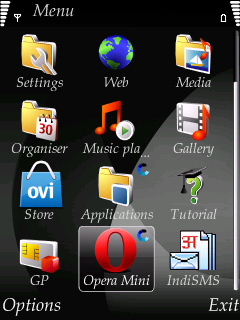
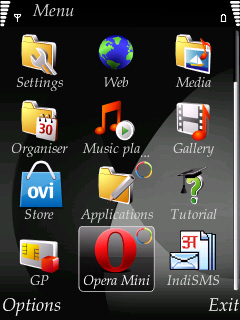
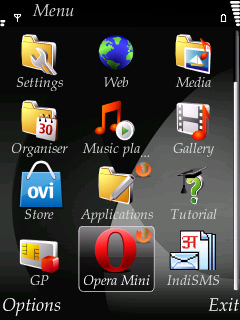
How are you? Today I will show you how to change the default menu of indicators ofSymbian S60V3. When you run an application in Symbian mobile and minimize the application during running process then which icon or sign of the application you see is called the menu indicator? For example in the application folder of my mobile I open one application and opera mini this two application. 


See the Application and the opera mini symbol is same. This is menu indicator. Now see when I change this indicator of my Symbian S60V3 Default Menu then how it looks like. For better understanding I provide the image below: Symbian S60V3 Default Menu Indicators Style 1.


Symbian S60V3 Default Menu Indicators Style 2:


Symbian S60V3 Default Menu Indicators Style 3:


When you change the menu indication then the icon of some application and folder also is changed. If you want to change the indicator of your Symbian S60V3 default menu then follow my steps.


Step 1: Create a folder named Patches in the memory card of the mobile. Open C drive with Xplore. Now copy Open4All RP+ from Patches folder and paste it in the Patches folder in the memory card.


Step 2: Now copy c2z Patch and paste it in the Patches folder of the memory card.


Step 3: Now open Rom Patcher and add the two patches just click Add to auto and then click apply.


Step 4: Now download the menu indication zip file from HERE and unzip it. You can see 26 zip files here. Now which menu indicators you like unzip it.


Step 5: After unzip we see a file named menu.mif. Now copy menu.mif with Xplore and paste it in C: -> resource -> apps.


Step 6: Now close Xplore and restart your mobile then you can see you’re default menu indicator will change.


Thanks for reading my blog. If you have any query please post your comment and share your experiences with us.

Monday, January 7, 2013

Tips For Protect Your Google Alert,Facebook, Twitter, Gmail and Pay in Cash Privacy.

By specs-phones | At 8:40 PM | Label : , , , , , , , , , , | 0 Comments
Over the weekend, I wound up at Washington, D.C.’s Trapeze School with a group of friends. Before one of them headed up a ladder to attempt a somersault landing from the trapeze bar, she handed me her phone and asked me to take photos. “What’s the password?” I asked. “I don’t use one,” she replied. My jaw dropped as it often does when someone I know tells me they’re choosing not to take one of the very simplest steps for privacy protection, allowing anyone to snoop through their phone with the greatest of ease, to see whichever messages, photos, and sensitive apps they please.

So this post is for you, guy with no iPad password, and for you, girl who stays signed into Gmail on her boyfriend’s computer, and for you, person walking down the street having a loud conversation on your mobile phone about your recent doctor’s diagnosis of that rash thing you have. These are the really, really simple things you should be doing to keep casual intruders from invading your privacy.

1. Password protect your devices: your smartphone, your iPad, your computer, your tablet, etc. Some open bookers tell me it’s “annoying” to take two seconds to type in a password before they can use their phone. C’mon, folks. Choosing not to password protect these devices is the digital equivalent of leaving your home or car unlocked. If you’re lucky, no one will take advantage of the access. Or maybe the contents will be ravaged and your favorite speakers and/or secrets stolen. If you’re not paranoid enough, spend some time reading entries in Reddit Relationships, where many an Internet user goes to discuss issues of the heart. A good percentage of the entries start, “I know I shouldn’t have, but I peeked at my gf’s phone and read her text messages, and…”

2. Put a Google Alert on your name. This is an incredibly easy way to stay on top of what’s being said about you online. It takes less than a minute to do. Go here. Enter your name, and variations of your name, with quotation marks around it. Boom. You’re done.

3. Sign out of Facebook, Twitter, Gmail, etc. when you’re done with your emailing, social networking, tweeting, and other forms of time-wasting. Not only will this slightly reduce the amount of tracking of you as you surf the Web, this prevents someone who later sits down at your computer from loading one of these up and getting snoopy. If you’re using someone else’s or a public computer, this is especially important. Yes, people actually forget to do this, with terrible outcomes.

4. Don’t give out your email address, phone number, or zip code when asked.Obviously, if a sketchy dude in a bar asks for your phone number, you say no. But when the asker is a uniform-wearing employee at Best Buy, many a consumer hands over their digits when asked. Stores often use this info to help profile you and your purchase. You can say no. If you feel badly about it, just pretend the employee is the sketchy dude in the bar.

5. Encrypt your computer. The word “encrypt” may sound like a betrayal of the simplicity I promised in the headline, but this is actually quite easy to do, especially if you’re a MacHead. Encrypting your computer means that someone has to have your password (or encryption key) in order to peek at its contents should they get access to your hard drive. On a Mac, you just go to your settings, choose “Security and Privacy,” go to “FileVault,” choose the “Turn on FileVault” option. Boom goes the encryption dynamite. PC folk need to use Bitlocker.

6. Gmailers, turn on 2-step authentication in Gmail. The biggest takeaway from the epic hack of Wired’s Mat Honan was that it probably wouldn’t have happened if he’d turned on “2-step verification” in Gmail. This simple little step turns your phone into a security fob — in order for your Gmail account to be accessed from a new device, a person (hopefully you) needs a code that’s sent to your phone. This means that even if someone gets your password somehow, they won’t be able to use it to sign into your account from a strange computer. Google says that millions of people use this tool, and that “thousands more enroll each day.” Be one of those people. The downside: It’s annoying if your phone battery dies or if you’re traveling abroad. The upside: you can print a piece of paper to take with you, says James Fallows at the Atlantic. Alternately, you can turn it off when you’re going to be abroad or phone-less. Or you can leave it permanently turned off, and increase your risk of getting epically hacked. Decision’s yours.

7. Pay in cash for embarrassing items. Don’t want a purchase to be easily tracked back to you? You’ve seen the movies! Use cash. One data mining CEO says this is how he pays for hamburgers and junk food these days.

8. Change Your Facebook settings to “Friends Only.” You’d think with the many Facebook privacy stories over the years that everyone would have their accounts locked down and boarded up like Florida houses before a hurricane. Not so. There are still plenty of Facebookers that are as exposed on the platform as Katy Perry at a water park. Visit your Facebook privacy settings. Make sure this “default privacy” setting isn’t set to public, and if it’s set to “Custom,” make sure you know and are comfortable with any “Networks” you’re sharing with.

9. Clear your browser history and cookies on a regular basis. When’s the last time you did that? If you just shrugged, consider changing your browser settings so that this is automatically cleared every session. Go to the “privacy” setting in your Browser’s “Options.” Tell it to “never remember your history.” This will reduce the amount you’re tracked online. Consider a browser add-on like TACO to further reduce tracking of your online behavior.

10. Use an IP masker. When you visit a website, you leave a footprint behind in the form of IP information. If you want to visit someone’s blog without their necessarily knowing it’s you — say if you’re checking out a biz competitor, a love interest, or an ex — you should consider masking your computer’s fingerprint, which at the very least gives away your approximate location and service provider. A person looking at their analytics would notice me as a regular visitor from Washington, D.C. for example, and would probably even be able to tell that I was visiting from a Forbes network address. To hide this, you can download Tor or use an easy browser-based option.

These are some of the easiest things you can do to protect your privacy. Ignoring these is like sending your personal information out onto the trapeze without a safety net. It might do fine… or it could get ugly. These are simple tips for basic privacy; if you’re in a high-risk situation where you require privacy from malicious actors, check out EFF’s surveillance self-defense tips.

Sumber : http://tipsabc24.blogspot.com

Saturday, December 22, 2012

Sony Ericsson Xperia Arc S Full Phone Specification User Review

By specs-phones | At 10:14 PM | Label : | 0 Comments

Sony Ericsson Xperia Arc S is another capable smartphone from the Sony Ericsson household. This mobile phone runs on Android v2.3 (Gingerbread) operating system. TheXperia Arc S from Sony Ericsson comes with a powerful 1.4 GHz Qualcomm Scorpion processor that is capable of handling all your applications with ease.

This phone has a 4.2-inch TFT touchscreen loaded with Bravia Engine and Gesture Input features. The Timescape UI on the Xperia Arc S gives you an immersive experience. The phone also has 512 MB RAM. Full Phone Specification:
Particulars
Features
Sony Ericsson Xperia Arc S

General
2G Network
GSM 850 / 900 / 1800 / 1900
3G Network
HSDPA 900 / 2100 - LT18i
HSDPA 850 / 1900 / 2100 / 800 - LT18a
Announced
Available. Released 2011, September

Body
Dimensions
125 x 63 x 8.7 mm
Weight
117 g

Display
Type
LED-backlit LCD, capacitive touchscreen, 16M colors
Size
480 x 854 pixels, 4.2 inches (~233 ppi pixel density)
Multi Touch
Yes
Protection
Scratch-resistant glass,Sony Mobile BRAVIA Engine,Timescape UI

 Sound
Alert types           
Vibration; MP3 ringtones
Loudspeaker
Yes
3.5mm jack
Yes

Memory
Card slot
microSD, up to 32GB, 8 GB included
Internal            
1 GB (320 MB user-available), 512 MB RAM


Data
GPRS
Up to 86 kbps
EDGE            
Up to 237 kbps
Speed
HSDPA, 14.4 Mbps; HSUPA, 5.8 Mbps
WLAN        
Wi-Fi 802.11 b/g/n, DLNA, Wi-Fi hotspot
Bluetooth           
Yes, v2.1 with A2DP, EDR
USB   
Yes, microUSB v2.0, USB On-the-go support


Camera
Primary
8 MP, 3264x2448 pixels, autofocus, LED flash
Features
Touch focus, geo-tagging, face and smile detection, 3D sweep panorama, image stabilization
Video
Yes, 720p@30fps, continuous autofocus, video light, video stabilizer
Secondary
No


Features
OS
Android OS, v2.3.4 (Gingerbread), v4.0.4, not upgradable to v4.1
Chipset
Qualcomm MSM8255T Snapdragon
CPU
1.4 GHz Scorpion
GPU
Adreno 205
Sensors
Accelerometer, proximity, compass
Messaging
SMS (threaded view), MMS, Email, IM, Push Email
Browser
HTML, Adobe Flash
Radio
Stereo FM radio with RDS
GPS
Yes, with A-GPS support; GLONASS
Java
Yes, via Java MIDP emulator
Colors
Pure White, Midnight Blue, Misty Silver, Gloss Black, Sakura Pink
- HDMI port
- Active noise cancellation with dedicated mic
- MP4/H.263/H.264/WMV player
- MP3/eAAC+/WMA/WAV player
- TrackID music recognition
- NeoReader barcode scanner
- Google Search, Maps, Gmail,
YouTube, Calendar, Google Talk
- Facebook and Twitter integration
- Document viewer
- Voice memo/dial/commands
- Predictive text input


Battery
Battery
Standard battery, Li-Po 1500 mAh
Stand-by
Up to 460 h (2G) / Up to 460 h (3G)
Talk time
Up to 7 h 25 min (2G) / Up to 7 h 35 min (3G)
Music play
Up to 37 h
Music
SAR EU
0.66 W/kg (head)  
Price group
Tests
Loudspeaker
Voice 67dB / Noise 65dB / Ring 76dB
Audio uality
Noise -89.3dB / Crosstalk -90.2dB
Camera
Photo / Video

The Sony Ericsson Xperia Arc S supports GPRS, EDGE, 3G and Wi-Fi platforms with which you can connect to the Internet.


This Sony Ericsson phone is enabled with Email and Push Email along with Document Viewer and Document Editor to keep you in constant touch with your professional work environment. This handset is preloaded with Android Market that lets you to download all the applications that you need instantly.

AGPS supported on the Xperia Arc S from Sony Ericsson helps you to explore the world without boundaries by helping you find your way to any place you want to go. A Geo-Tagging feature is also enabled on this phone. A HDMI connector on the phone lets you to connect your phone to the TV to watch all your favorite videos. You can watch 3D videos that you have captured on your mobile phone by connecting the device to a 3D TV.


Some User Review:

I Av ICS & it's so stable how about jelly bean & how did you do that?
 
You cannot "uninstall" ICS per se. But if you really don't want ICS, you can flash your phone with an official Ginberbread Version (2.3.4). Just follow this link: http://goo.gl/bbsaE It's not a complicated process

Posting Lama ►
 

Visitor

Copyright © 2012. specs phones - All Rights Reserved B-Seo Versi 5 by Bamz my free template